
Southern Machinery
Southern Machinery
SMT & THT PCB Assembly Automation for EMS Factories
THT Auto Insertion machine
1,Auto Insertion Axial Radial Oddform Production line.html
https://smthelp.org/html/Auto%20Insertion%20Axial%20Radial%20Oddform%20Production%20line.html
2,SLD250+S3010A+S7040T(tray feeder)+SULD250
AI machine production line.html
https://smthelp.org/html/SLD250+S3010A+S7040T(tray%20feeder)+SULD250%20AI%20machine%20production%20line.html
3,SLD250 S4020A+S3010A SULD250 AI machine
production line.html
https://smthelp.org/html/SLD250%20S4020A+S3010A%20SULD250%20AI%20machine%20production%20line.html
4,S7000 Oddform insertion 3 bowl feeder.html
https://smthelp.org/html/S7000%20Oddform%20insertion%203%20bowl%20feeder.html
5,S-7040T Oddform insertion w Tray
feeder.html
https://smthelp.org/html/S-7040T%20Oddform%20insertion%20w%20Tray%20feeder.html
6,S-7040 Oddform insertion w 4 bowl
feeder.html
https://smthelp.org/html/S-7040%20Oddform%20insertion%20w%204%20bowl%20feeder.html
7,Odd form insertion Feeders w
loader-unloader.html
https://smthelp.org/html/Odd%20form%20insertion%20Feeders%20w%20loader-unloader.html
Feeder
1,Bowl Radial reel feeder w JUKI cart.html
https://smthelp.org/html/Bowl%20Radial%20reel%20feeder%20w%20JUKI%20cart.html
2,JUKI Radial tape L lead feeder .html
https://smthelp.org/html/JUKI%20Radial%20tape%20L%20lead%20feeder%20.html
https://smthelp.org/html/SMT%20tube%20feeder.html
4,SMT tray feeder -B.html
https://smthelp.org/html/SMT%20tray%20feeder%20-B.html
5,SMT label feeder.html
https://smthelp.org/html/SMT%20Tray%20feeder.html
6,SMT Tray feeder.html
https://smthelp.org/html/SMT%20Tray%20feeder.html
Nozzle
1,SMT nozzle list 1.html
https://smthelp.org/html/SMT%20nozzle%20list%201.html
2,Juki Nozzle 500 Assembly.html
https://smthelp.org/html/Juki%20Nozzle%20500%20Assembly.html
AI Spare Parts
1, Panasonic AI Spare parts
https://smthelp.org/html/Panasonic%20AI%20Spare%20parts%20list%202.html
2,UIC Radial Carrier Clip.html
https://smthelp.org/html/UIC%20Radial%20Carrier%20Clip.html
3,UIC Radial Feeder and Carrier Clip (1).html
https://smthelp.org/html/UIC%20Radial%20Feeder%20and%20Carrier%20Clip%20(1).html
4,UIC spare parts list 3.html
https://smthelp.org/html/UIC%20spare%20parts%20list%203.html
The unit loads your production line automatically by pushing PCB’s out of a magazine onto the conveyor of the down-stream machine
[embeddoc url="https://smthelp.org/wp-content/uploads/2020/07/SMThelp-PCB-Conveyor-3D.pptx" download="all" viewer="microsoft"]
3D RS-1 Vibration Feeder
3D SMT PCB conveyor
3D SMT PCB Magazine
3D Southern Machinery logo
3D UIC Radial taped feeder housing
3D JUKI Gripper nozzle
Automated optical inspection machine (AOI) is a new type of testing technology. It has
developed very rapidly in recent years. The structure of AOI consists of four parts: workbench, CCD camera system, electromechanical control and system software. When testing, firstly, the circuit board to be tested is placed on the workbench of the AOI machine, and the detection
procedure of the product to be detected is called out through positioning. The X/Y workbench
will send the circuit board under the lens according to the command of the setting program. With the help of the special light source, the lens will capture the image required by the AOI system and analyze it, then the processor will move the lens toward the lens. The next position is
collected for the next image and then analyzed, and the image is subjected to continuous
analysis and processing to obtain a higher detection speed. The process of AOI image
processing essentially digitizes the extracted image, and then compares it with the pre-stored “standard”. After analysis and judgment, it finds the defect to make a position prompt, and at the same time generates image text, and the operator further confirms or sends the repair station. Overhaul
Please call me to chat:
PCB Unloader loader and Destacker from production to packaging.
1. Purchase all kinds of materials according to order.
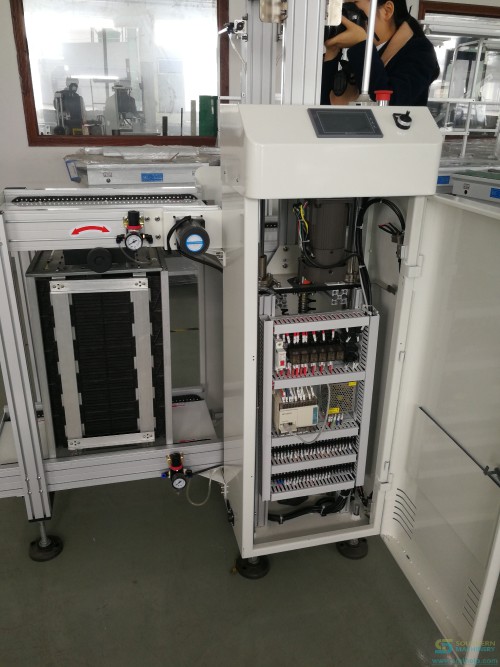
2. Frame installation of the entire machine.
3. Installed power motor
4. Install PLC control box.
5. Install sensor and belt.
6.Install the cover
7.Install the LOGO

8. Install the program and test the machine.
9 .Use PCB board to test machine.
10.Use a magazine test machine.
11. Aging operation week
12. Simple packing before shipment.
13. On the day of shipment, use the export wooden box vacuum packing,
14. Arrange forwarders to pick up the goods.
Four machines were shipped and shipped to the United States via freight forwarders.
ming@smthelp.com
PCB Unloader loader and Destacker from production to packaging.
1. Purchase all kinds of materials according to order.
2. Frame installation of the entire machine.
3. Installed power motor
4. Install PLC control box.
5. Install sensor and belt.
6.Install the cover
7.Install the LOGO
8. Install the program and test the machine.
9 .Use PCB board to test machine.
10.Use a magazine test machine.
11. Aging operation week
12. Simple packing before shipment.
13. On the day of shipment, use the export wooden box vacuum packing,
14. Arrange forwarders to pick up the goods.
Four machines were shipped and shipped to the United States via freight forwarders.
ming@smthelp.com
S-CC200 User’s Manual for Part Counter
Index
-
Introduction…………………………. … ……. ….……..3
-
Attention for part counter……… ……………………. . 4
三、Chip bonder counter function key and operating instructions… ………………………………………………. …4
四、Chip bonder counter connecting printer operating instructions (Option) ……………………………… …………6
五、Trouble Shoot……….…………………….……………….8
六、After-sale service……………………………………….9
七、After-sale service card………….……… .. …………………..10
一、Introduction
1、Theory
Chip bonder counter can precisely count the SMD quantity, by adopting optical and electric sensor theory, using the corresponding relation between guide hole on the carrier and part, and by the special die and massive integrated circuit, chip bonder counter achieve zero error, and achieve convenient, quick counting, it is an effective auxiliary equipment for managing SMT material.
2、Product features
With full automatic way figure part quantity, it is convenient to count and delivery material. Easily operate it, original design defending strip dropping off decrease strip hurt to a smallest extent. It can count in forward direction or in backward direction, and it can be preset value, precisely figure out quantity with zero error. You also can install scanner gun and barcode printer, which is more convenient for managing operation..
3、product specification
Power: AC220V,50/60HZ,25W
Counter range: -99999–99999PCS
Profile size: L470W300H180mm
Weight: 10KG
4、Product Utility
Suit for SMD strip type of part
Strip wheel diameter: suit for any size
Strip pitch: 1,2,4,8,10,12,16,24,32,44,56mm ( Note: if pitch is smaller or wider, make it according to customer’s request)
Strip width: 4,6,8,12,16,24,32,44,56mm (Note: if width is smaller or wider, make it according to customer’s request)
5、Product Structure
this product have two types.
-
S-CC200 Standard chip bonder counter

2) S-CC202 inspecting missing type chip bonder counter
1、material reflector
2、Tray
3、Gear/motive pressing plate
4、monkey wrench
5、rocket head
6、free movable shoulder
7、location knob
8、display
9、key
10、power key
11、handle
12、glass fiber amplifier
13、glass fiber head to head emitter
二、Chip bonder counter attention
1,After unpacking, please count and make sure all accessories ready.
2,Before using chip bonder counter, please carefully read operating instructions and safe keeping.
3,Please check whether voltage specification conform to the electric supply.
4,Please check grounding properly, and guarantee safety of human body and part.
三、Chip bonder counter function key and operating instructions
1、Function key introduction
1)”PRINT”
Operation way: enter the key, you can print the counting part and quantity on the barcode by the barcode printer.
2)”SET”
Operation way: if the display shows 00000 in the left bottom, you can directly press the number key to input the counting part quantity; press the SET key one more time, the machine switches to manual mode, and the display shows ***** in the left bottom. Switch to manual mode or automatic mode using this key. (note: under automatic mode, you can preset a value before counting material, when machine turn to the presetting value, it will automatically stop, under manual mode, only if you press ” stop/zero clearing” key or it finishes all material, the machine will stop.)
3)”PITCH”
Operation way: after pressing this key, the pitch value in the display will flicker, then you can input the pitch value and press “ENTER” key, if no press after 5 second, automatically memorize, the machine will resume to standby status after one ticking sound.
4)”RIGHT” “FOREWARD/RIGHT”
Operation way: Pressing this key, start clockwise counting part, the numerical value is positive number, “BACKWARD/LEFT” on the contrary.
5) “STOP/ZERO CLEARING”
Operation way:
(1)Under counting or feeding back status, press this key, it will stop counting or feeding back.
(2)If under standby status, press this key over 2 second, the counting value will be cleared up.
(3)If under printing interface, press this key, return to main interface.
6)”SELECT”, this key is switching key for setting parameters in printing interface.
7)LCD display
Set pitch
Set counting quantity part quantity
display*****under manual mode
8)”Time/missing stop” key is switching key for motor rotating speed, press this key, LCD display will show motor speed will be switched among H(high speed), M(middle speed), L(low speed).
2、 Operation Flow
1)Connect the power cable to the master machine, and plug the AC220V power.
2)Turn on the POWER key on the panel of machine, at this time, LCD panel become light
3)Press PITCH key, set the pitch between counting parts, then Press “ENTER”, and put the part on the left tray.
4)Manually pull out the strip and put it between material guard plate and counting gear, make the first part and blank middle hole aligning the middle line of material guard plate.
5)Press “STOP/ZERO CLEARING” key for 2 seconds, make the value zero clearing. Note: when pulling the strip, counting gear will turn and count, pressing this key, make the value zero clearing.
6)Press “SET” key to switch to manual mode or automatic mode, when you select automatic mode, you should input a value which you are going to count, or the “FORWARD” motor won’t start.
7)Pull strip coiling to the blank tray (right tray) by your hand, press “FOREWARD/RIGHT” to begin counting.
8)When finishing preset value, motor stop. Impacted by the inertia theory, counting number may be more one or less one than the set number,
9)When finishing counting, press “BACKWARD/LEFT”, strip will coil back to the left tray, after finishing, rotation will stop.
四、Chip bonder counter connecting printer operating instructions (Option)
1、Check equipment
1)Connect part counter and barcode master machine
2)Correctly place the barcode paper in the printer
2、 adjust and test equipment
1)Start power switch of the part counter
2)Start bar code master machine power switch: power pilot light and ready pilot light are on, at moment, press FEED key of bar code master machine (automatic aligning key), make the paper automatically align. ( P.S: if power light is flickering, it denotes the machine is off line, please restart power or repress FEED key)
3、Print
Press “PRINT” key in the master interface, master interface will display printing interface, the first row in the interface show: company name (you can set it by yourself); the second row show: time, the last row show printing operation.
-
When entering printing interface, there is a flickering cursor in the third row, you can edit and modify the content in the cursor position.
-
In the printing interface, pressing LEFT/BACKWARD, you can make the cursor move left, pressing RIGHT/FOREWARD, you can make the cursor move right.
-
In the cursor position, you can directly input the number or letter, if you continually press any key among 0~9 key in a short time, you can switch between number and letter on the key. Among of them, pressing 1 key, you can switch to special symbol, Capital letter, small letter, and etc.
-
After editing each row, cursor will stay in the row you are editing, press “ENTER” key, it will display OK in the left of this row, which means the content is saved.
Note: Saving the content in the editing row, only when cursor is in this row, and then press ENTER, the content can be saved. For example, if you want to save the content in the first row and second row, when cursor is in the first row, you press ENTER key, at the moment, only the content in the first row is saved, the content in the second row can’t be saved.
-
In the printing interface, press SELECT key into printing parameter setting interface, XYWH: XXX XXX XXX XXX showed in this interface separately denote X axis, Y axis, width, height which you can set to the printed barcode paper.
-
Press STOP/ZERO CLEARING back to master interface
-
Press PRINT key one more time, you can print the content in the printing interface.
Tag: when scanner scans barcode, it will display in the printing interface, press PRINT key to print.
五、Easy trouble shoot
| Failure | debug method |
| After turning on power, LCD no display, buzzer no sound | Please check if power cable drop off or fuse loosen |
| 。After turning on power, LCD no display, buzzer sound | LCD display cable loosens or breakdown, please check or contact dealer to change. |
|
LCD normally displays, but FOREWARD/BACKWARD can’t be started. |
|
六、After-sale service a: (overall unit maintenance period for one year, master controller board maintenance period for three years, and tended for all life.) the following state happened is not in the free maintenance condition.
-
Machine is damaged under carried by your person by himself
-
In unstable voltage region, due to not using voltage stabilizer, cause component damaged.
-
Due to not using correct voltage, cause component damaged
-
Not selled by our company, but selled by dealer or other factory.
-
Natural disaster, or act of God.
After-sale service card
User’s Name: Address:
Machine model: User’s phone number:
Purchasing Date: Dealer’s seal:
User should know that:
- From the purchasing date on, overall machine will be maintained for one year, and tended for all life.
-
The following state is not in maintenance condition:
(1)Due to wrong operating, carelessly using, natural disaster cause the machine damaged.
- Due to operating abnormally, cause the machine not work properly.
- Once dismantled or repaired by someone who is not our technician.
- Using consumable supplies or component which are not from our company, cause the machine damaged.
- Not using the voltage required by our company, cause the machine damaged.
- Due to operating abnormally, cause the machine not work properly.
- Except this guarantee, any guarantee card supplied by other company or people won’t be approved by our company.
- Please safe keeping the card and formal purchasing receipt, when repairing, it will be effective after showing them to our people review.
- If the card has no commodity seal and purchasing date, the card automatically become invalid.
Destacker Build Procedure SDM0029
Rev A
1. Obtain the proper shop packet and check order for build information. Pull all parts if any parts are missing, fill out a shortage sheet and give a copy to the appropriate material coordinator.
2. Pull the latest Electrical and Mechanical prints.
3. The following procedure is for a 29″ Destacker. Attach leg and control box to main beam. Leg should be flush to left side of main beam. Control box should be 3″ from right side of main beam. Attach width units to main beam, 4-3/8″ from either end square to main beam and Parallel to each other.
4. The following procedure is for the 44″ and 58″ Destackers Attach leg and control box to main beam. Leg 7-5/8″ from left end control box 7-5/8″ from right end. Attach width units to main beam 8.975″ from either end. Square to main beam and parallel to each other.
5. Attach rear rail to width supports parallel to main beam 3/8″ overhand from either end of main beam.
6. Level conveyor from side to side and front to back, off rear rail
7. Attach front rail to width supports. Match level to rear rail, especially front to back. Make parallel to rear rail. Make ends even with rear rail.
8. Install motors, pulleys, UHMW and belts on rails.
9. Attach Destacker assy to rails
10. Assemble valve pack assy and install
11. Attach air input assy
12. Attach front cover and wire into control box
13. Run pneumatic lines, load program software and test.
14. Complete check sheet, turn over to QC
End of Document


Automatic desktop SMT
pick and place machine
Model: S-6000V
Programming manual
Catalog
-
Import Material Order
- Import the coordinate file
- Import the coordinate file
-
Material Stack Configuration
- Coil stock and tray stock
- Coil stock and tray stock
- Material stack configuration function
-
Mounting Setting
- Mount setting function and introduction
- Mount setting function and introduction
-
Puzzle Setting
- Quick makeup
- Quick makeup
- Program Runs
SMT system programming tutorial
-
Import Material Order
-
Import the coordinate file
-
Import PCB file coordinates directly and scraping PCB components coordinates manual.
-
Import PCB coordinates
① PCB coordinate document template, it is the CSV file.
②Open control system main interface – > file – > new file – > import coordinate.
③ The CSV file, PCB general has Top layer and Bottom layer element coordinates, please confirm the current PCB is the top layer or the bottom layer, choose in the lower left corner coordinates. Then click the lower right corner → the import button.
Import the coordinate file function instructions:
|
Import the coordinate file function instructions |
||
|
Option name |
Operation |
instructions |
|
Coordinate surface |
Choose the Top layer and Bottom layer to import coordinate components. |
|
|
Flip coordinate |
||
Select this option, will perform PCB flip horizontal coordinates
|
Flip Angle |
Option |
|
|
Allow Blank |
When coordinate file have the margin, import coordinate indicates a blank space, must be made to modify the file and then import, avoid programming error. Select this option, will ignore the coordinate file integrity, errors may result in mounting components. |
-
Grab the coordinate file by hand
-
Main interface in the upper right corner click open control system→Grab the coordinate To manually add the new coordinates
- Manually add the new coordinates
① X Y positioning equipment function
- Manually add the new coordinates
|
X Y positioning equipment function |
||
|
Option name |
Operation |
function |
|
drop-down |
||
|
options |
Option |
Choose the cursor, nozzle 1, nozzle 2 to grab positioning tool of the coordinate. |
|
Open cursor |
||
|
Close cursor |
||
|
Back to Home |
Execute |
Machine return to original state |
② Stepping set and X Y movement Function
|
Stepping set and X Y movement Function |
||
|
Option name |
Operation |
Function |
|
Stepping set |
Option |
Alternatively the step size of the X Y directions |
|
X Y movement |
Execute |
Up and Down, Leaf and Right button could Operate X Y direction positioning, In operation, please don’t close to the machine tool |
③ Manual input coordinate function
| Manual input coordinate function | ||
| Option name |
Operation |
Function |
| Bit No. |
Modify |
General is number, To manager the PCB program more clearly, fill the PCB current anchor element bit number. |
| Component Package | ||
| Center X |
Automatic acquisition |
Operation the movement direction key to the PCB component packaging center, Automatically obtain X Y coordinate value, please do not modified by hand. |
| Center Y | ||
| Angle |
Modify |
Angle of PCB component |
| Component Type |
Type of PCB component |
|
|
Note: After setting the above operation,, click “OK” to record coordinate current bit number. And then to do the next one. Directly to the center of the moving direction key to enter a number to setting, Click “OK” to finish record coordinate current bit number. |
||
-
Material Stack Configuration
-
Coil stock and tray stock
- Coil stock: For the coil stock component putting.
- tray stock: For the tray stock and tube IC component putting.
- Coil stock: For the coil stock component putting.
-
Material stack configuration function
- Material stack configuration function
- Material stack configuration function
-
|
Material stack configuration function |
|||
|
Option name |
Coil stock |
tray stock |
|
|
station number |
According to the material stack number |
||
|
Program Component |
Click and choice of material stack put components corresponding component model, choose components are not allowed to repeat |
||
|
Material System |
Click into the system of material select stack corresponding packaging material with configuration |
||
|
Component |
Click into the system components and system interface to select material with the corresponding system components package |
||
| Calibration center |
Click on the center coordinate values into the center calibration interface, moving XY direction calibration feed tray placed in the center of the stack and elements to get set up |
||
| Calibration broaching |
Click broaching broaching coordinate values into the calibration interface, moving XY direction calibration broaching center to get set up |
||
| Initial angle |
Material stack element display angle, the system default 90 ° degrees |
||
| Rows , columns line spacing, column space |
Modify the settings for each display from the ranks of the number and the element array tray material |
||
| Adapter nozzle |
2 head: left one is 1,the right one is 2, according to the different elements of the package material stack, could change any head. |
||
| Flight Speed |
Normal:30000pps, Special components can be customized flight speed. The smaller data , the slower operating speed |
||
|
More materia |
Pick up
speed |
Refers to the suction nozzle picking up speed, Normal: 20000pps. The smaller data , the slower pick up speed |
|
|
Pick up
Depth |
Refers to the suction nozzle distance with the end face contact material stack material when pick up the component, Through the calibration can get picked up depth data, Special component separately select pickup depth |
||
|
Pick up
alone |
To some special material stack, setting the speed the depth separately. |
||
- Multi-line batch modification Description
| Multi-line batch modification Description | ||
| Description: Bit column number , hold down the left button to select a number of modifications can make the following batch modify. |
||
| Option Name |
Operation |
Description |
| Center X |
Modify |
batch settings calibration center X coordinate of material stack |
| Center Y |
batch settings calibration center Y coordinate of material stack |
|
| Broaching partial X |
batch settings Broaching partial X coordinate of material stack |
|
| Broaching partial Y |
batch settings Broaching partial Y coordinate of material stack |
|
| Pick up depth |
batch settings pick up depth of material stack |
|
| Adapter nozzle |
Option |
batch settings adapter nozzle of material stack |
- Material stack debugging tools, data checking function description
| Material stack debugging tools, data checking function description | ||
| Option Name |
Operation |
Description |
| Material stack test |
Execute |
Pick up test for calibration finished material station configuration list |
| Save material station to the file |
Save the material station file for calibration finished material station configuration list, it could make it easy for the nest use. |
|
| Loading the material station from the file |
Can be loaded directly with the saved material station. |
|
| Check no material |
Check the Program Component in the material station configuration list for no material. |
|
| Check double material |
Check the Program Component in the material station configuration list for double material. |
|
| Check nozzle vacancy |
||
-
Mounting Setting
- Mount setting function and introduction
- Mount setting function and introduction
Programming parameters automatically get in after the second material Stack Configuration.
-
Calibration Function description
-
PCB information – Align programming origin
① Click the Align program into the coordinate system origin correction interface.
② Calibration Make sure whether the splint placed parallel to the PCB in place, subject to the plywood base point, and then calibrate.
③ Calibrating the far two point coordination ( reduce the error), Click OK after finished
calibrate.
-
Setting Mark point ( This setting must be completed – after operating alignment program origin )
Set Mark Point, choose a more independent square or circular Mark point as calibration points.( (Note: Mark point usage; in the fourth programming due to the PCB board or puzzle on the origin lead to error, click Mark point to automatic correct board )
-
Calibration ( This setting must be completed – after operating alignment program origin )
Calibration is used to correct a separate placement coordinate with the actual Mark-point calibration.
-
Other Setting
① Reset the default placement coordination, mounting XY coordinate reply for source file coordination.
② Check invalid pick up material station, check whether the configuration is complete.
-
Puzzle Setting
-
Quick makeup
-
It can horizontal and vertical puzzle PCB.
-
Origin offset correction
- Manual correction and automatic correction
-
Puzzle calibration Make sure whether the splint placed parallel to the PCB in place, subject to the plywood base point, and then calibrate.
① Manual correction: Click the PCB list of coordinates to enter the calibration correction, respectively coordinate 2 far point calibration.( reduce the error), If there is the puzzle PCB, then do the first PCB, and send and so no. The same way to calibrate.
② Mark point automatic correction: one-time auto-complete according to automatic Mark point on board.
-
Program Runs
-
Program option function 5.1.1 Function
|
Option Name |
Operation |
Description |
|
Base plate Depth |
Calibration |
Nozzle and plywood PCB contact distance, setting through the calibration. |
|
Optimization Option |
Option
Dual stepper reel, can improve the placement rate.
The default double election: if canceled a nozzle will not be placement relative programming can not be involved in SMT production process, two nozzles are canceled, the program
can not be generated.
-
Run the patch
- Function
- Function
|
Option Name |
Operation |
Description |
| Test mounting |
Option
Select the test mounting, roll feed zone does not feed tray,
please do not put components, SMT will simulate patch
End the process when
the error occurred
Selected, SMT work when other material stack error will end the current SMT all the work, and stop running
Speed Stalls
Set
The smaller stalls, The slower SMT run speed
Starting line number
It may be the current line number bit number for starting SMT
placement
Back Home
Execute
Back to initial state.
Start
Start SMT run
Pause / Resume
When SMT work, click this button, it could pause, and click
again, it could resume to work.
End
End the current work.
5.3 Mount coordination Preview
Function: You can preview the imported PCB plots, red for the selected package components , it can zoom right to select the bit number to view the preview package management.
PCB conveyor: every SMT production line to use such a machine
Can be used to connect SMT production lines, but also can be used as PCB buffer, inspection, testing or manual insertion of electronic components.
Characteristics of the equipment
- Modular design can be selected and disassembled according to customer requirements
-
Strong steel structure design enhances the stability of the equipment.
-
Smooth and parallel ball screw adjusting mode
-
Variable speed control function
-
Circuit board detection mode
-
Use special transmission track aluminum slot design to prevent card board
-
Bottom weight design, not easy to shift
-
The machine length can be customized according to customer’s requirements
-
Compatible SMEMA interface


[Canvasio3DPro templateID=”11″ objectID=”11″][/Canvasio3DPro]
We Provide different spare parts and wearing parts of different brands and models.(UIC,TDK,Panasonic,Samsung,Fuji,Juki,SIMMENS……) Only need to tell us your parts‘ machine model and P/N. Fuji TDK Juki Samsung YAMAHA UIC Panasonic
www.smthelp.com
Why Choice Us?
- We owning 10 years experience in providing SMT/EMS services.
- Familiar design and engineering capability both on Hardware and software.
- Successful design experience in SMT line.
- Lean manufacturing.
- High mixed, high value, low volume business expertise service.
- Flexible operation, fast response and total satisfaction.
- Good after-sales and extra value creation services including logistics support, valet procurement, supplier audit service and in factory office offering.